

How to add Vehicle Brands and Models in Invent ERP?
How to add Vehicle Brands and Models in Invent ERP?
Creating brands and models in Invent ERP lets you record vehicle makes and versions accurately, so listings are organized. Correctly identifying brands and models eases the repair process and removes obstacles when matching parts and jobs. The main purpose is to improve data consistency, speed up workflows, and enhance customer service.
Step-by-Step Process
Step 1: Navigate to Garage Management
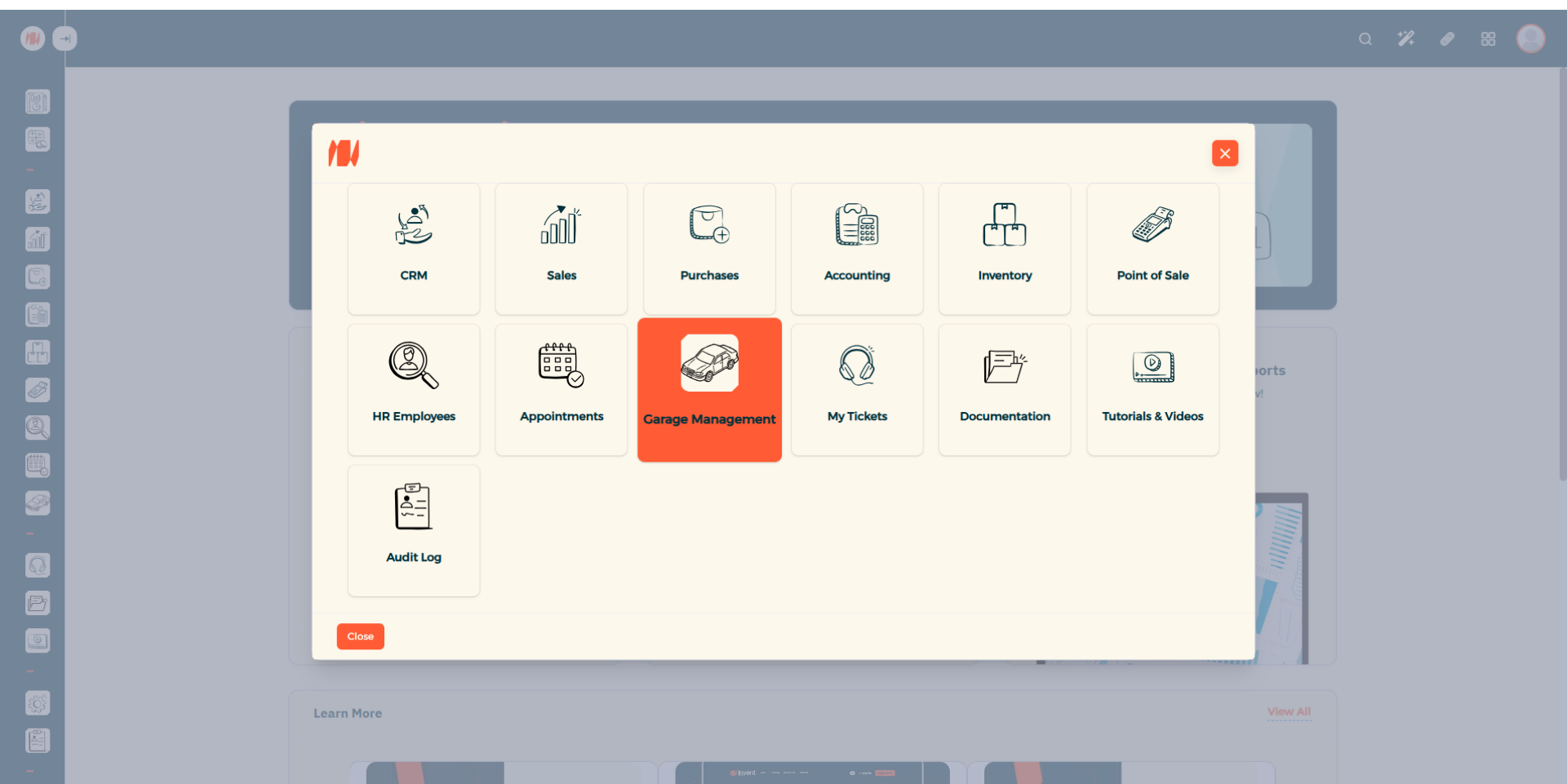
Step 2: Navigate to Vehicle Brands
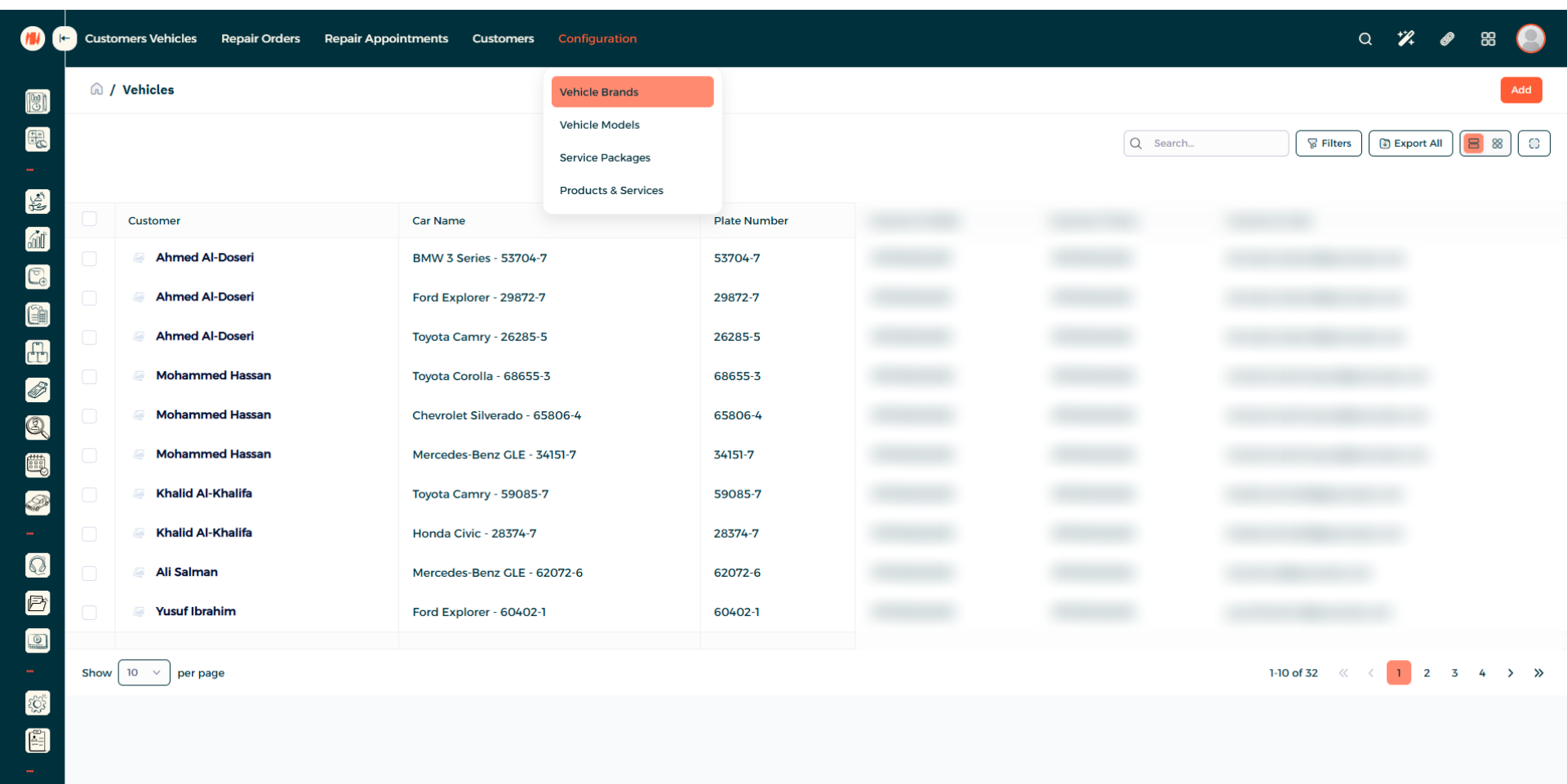
Step 3: Add a Vehicle Brand
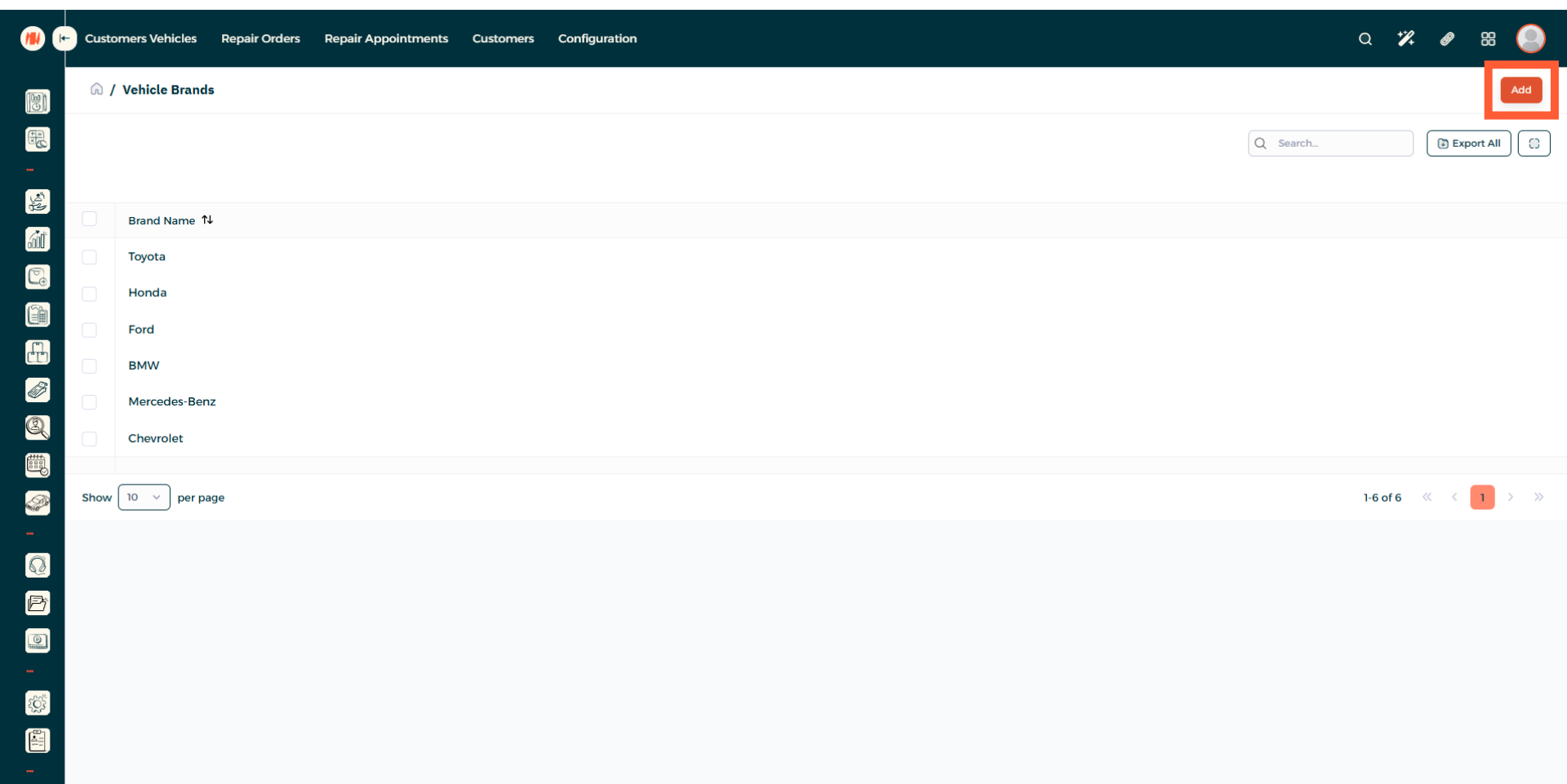
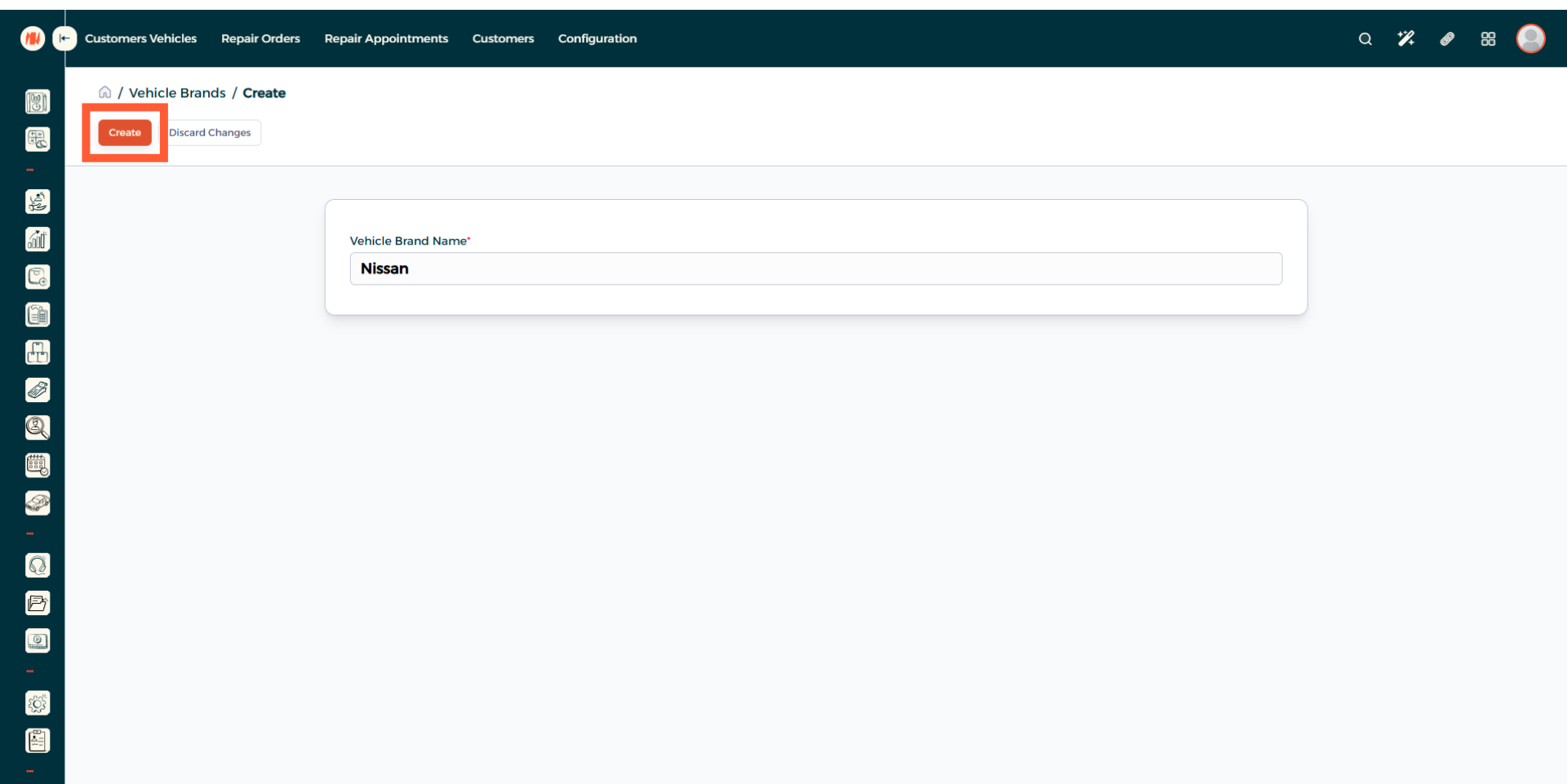
Step 4: Add a Vehicle Brand name
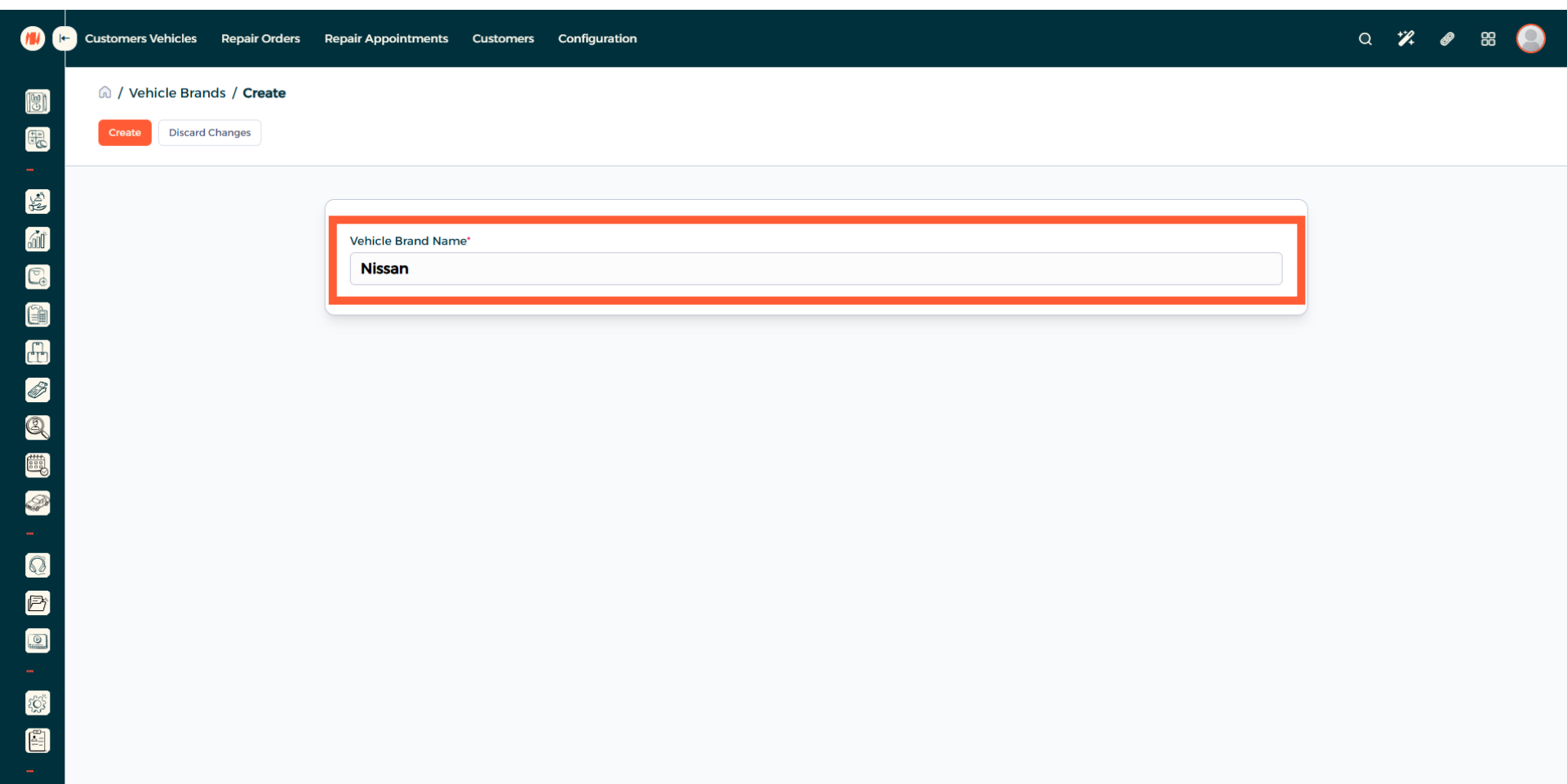
Step 5: Create Vehicle Brand
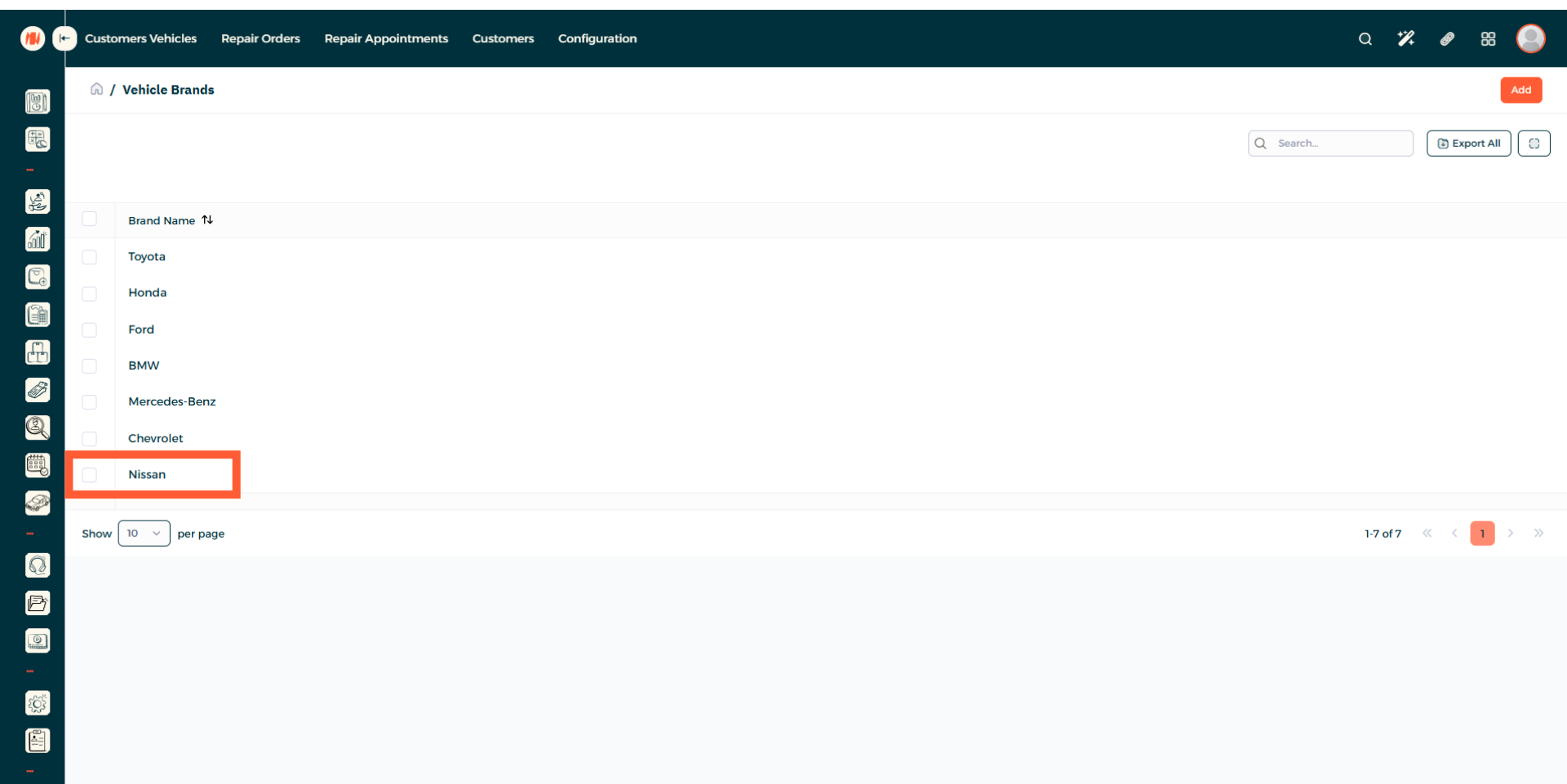
Step 6: View Vehicle Brand creation
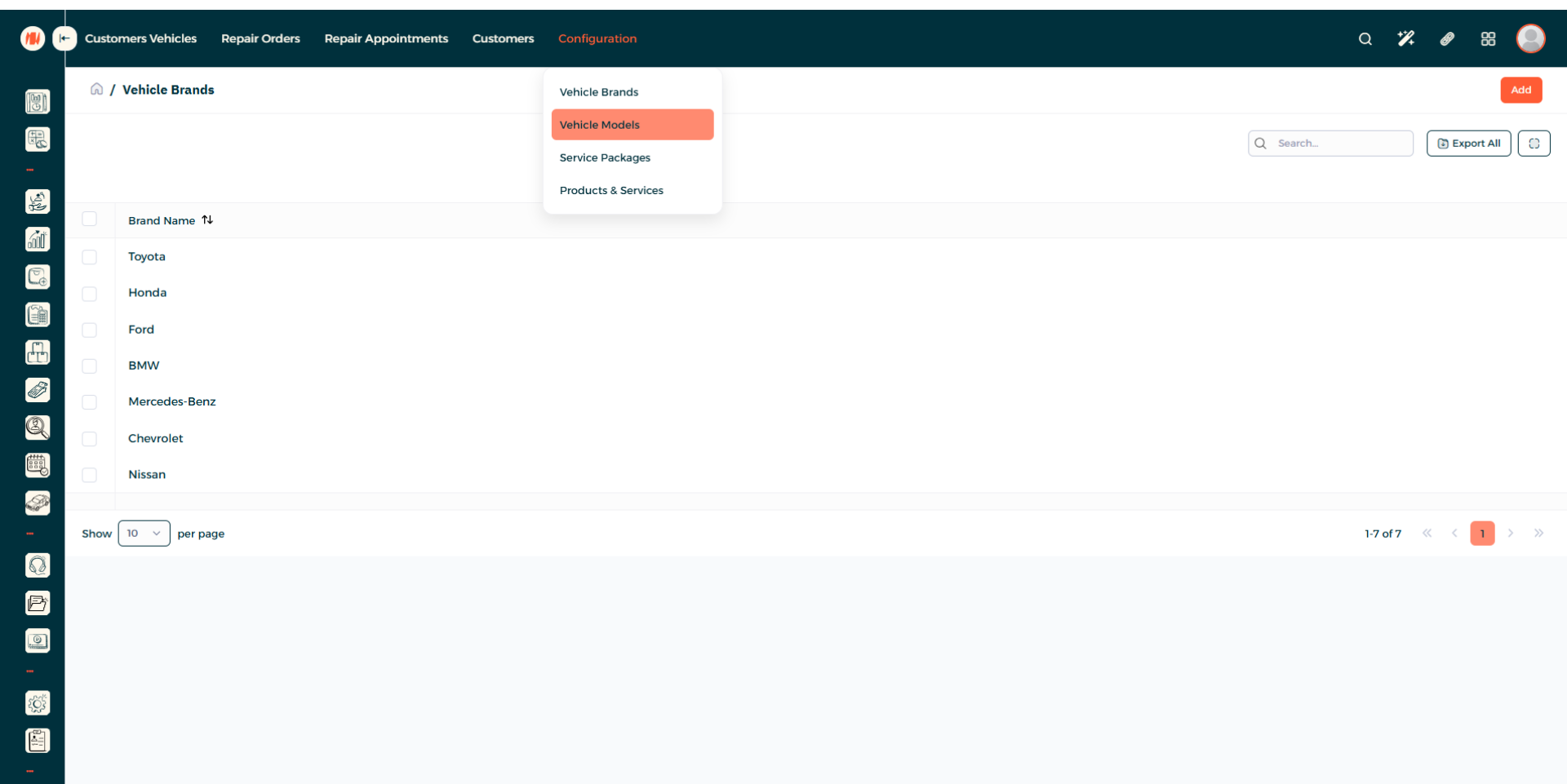
Step 7: Navigate to Vehicle Models
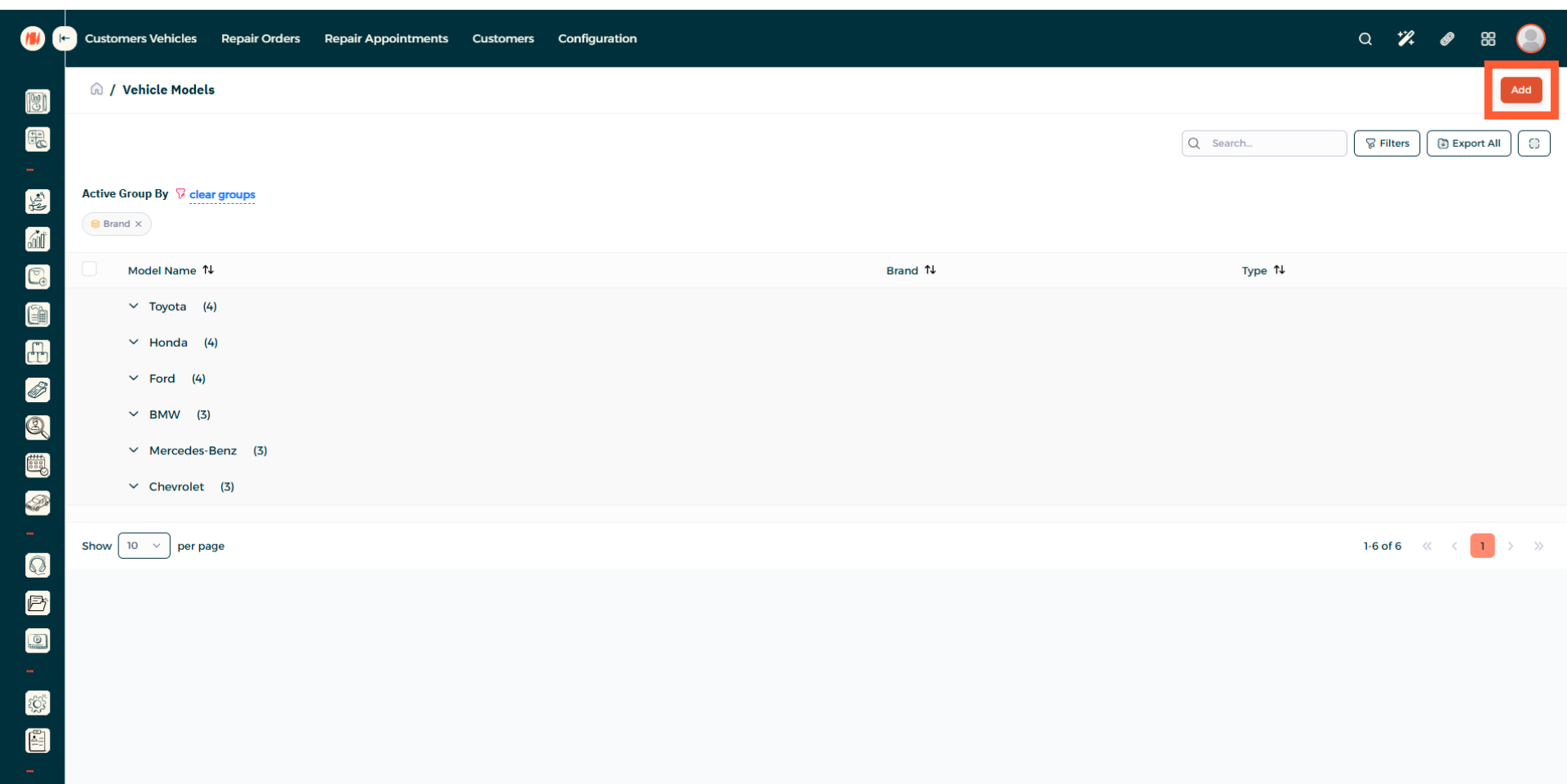
Step 8: Add a Vehicle Model
Step 9: Select Vehicle Brand
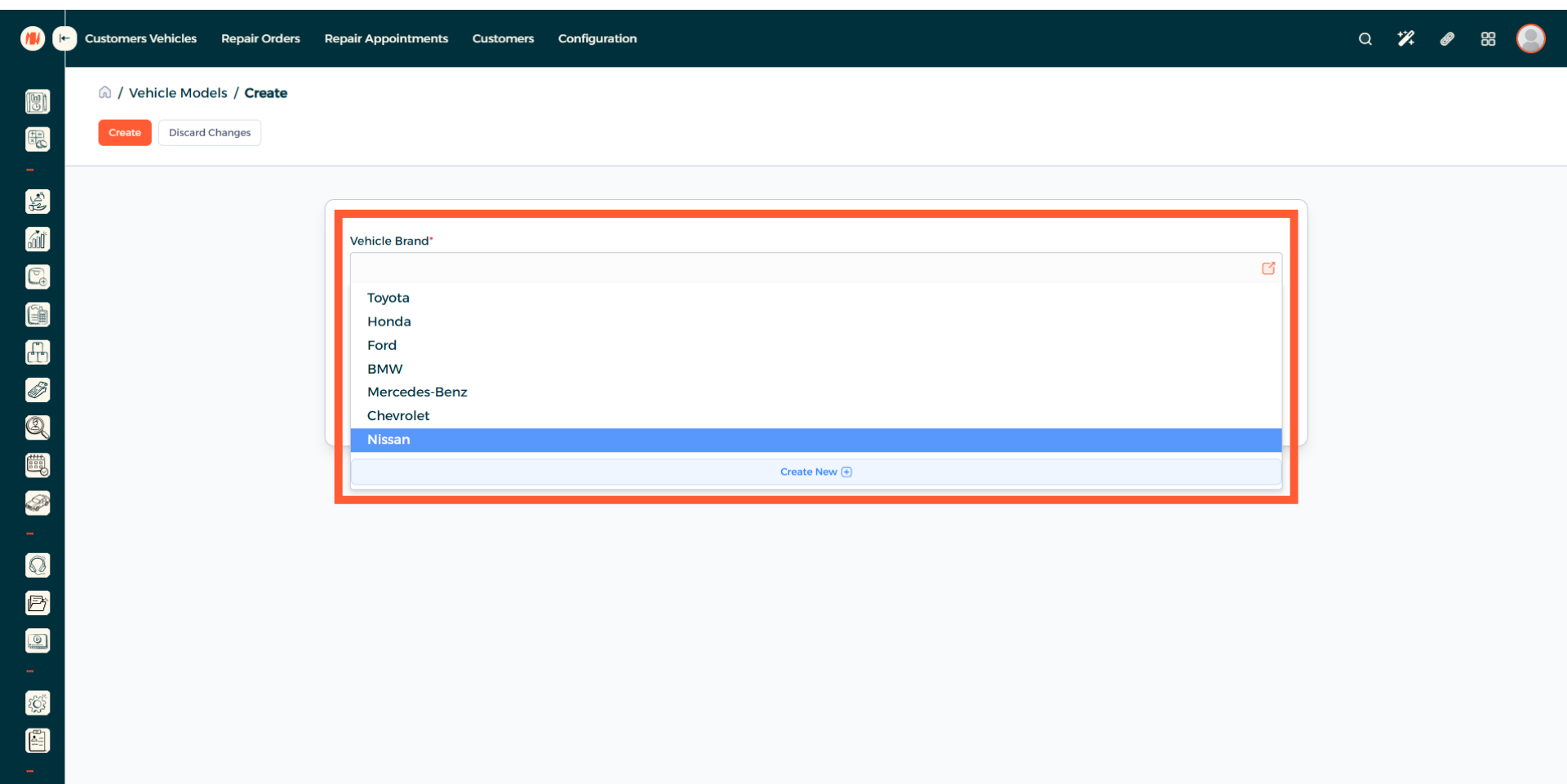
Step 10: Choose Vehicle Type
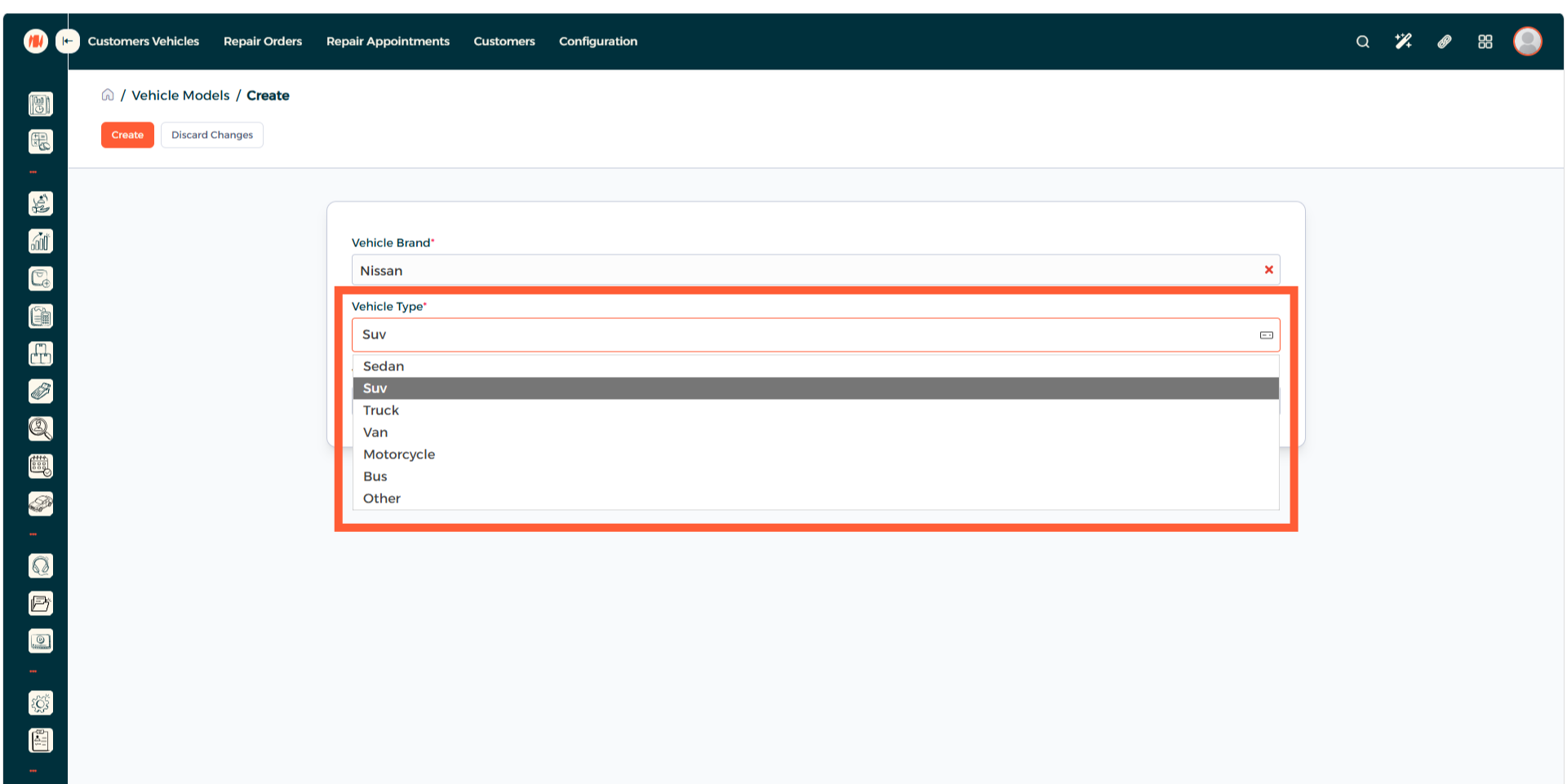
Step 11: Enter Vehicle Model Name
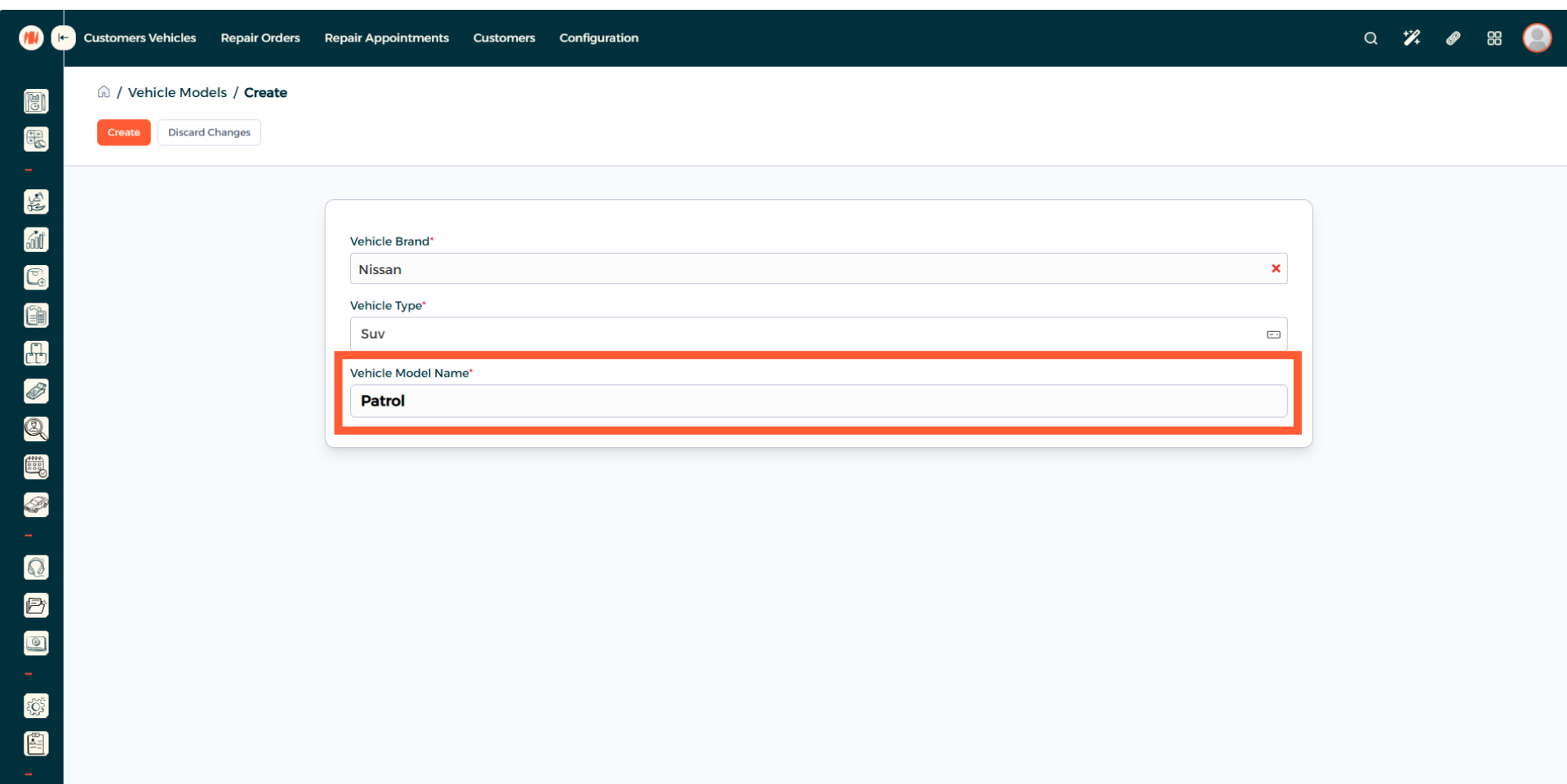
Step 12: Create Vehicle Model
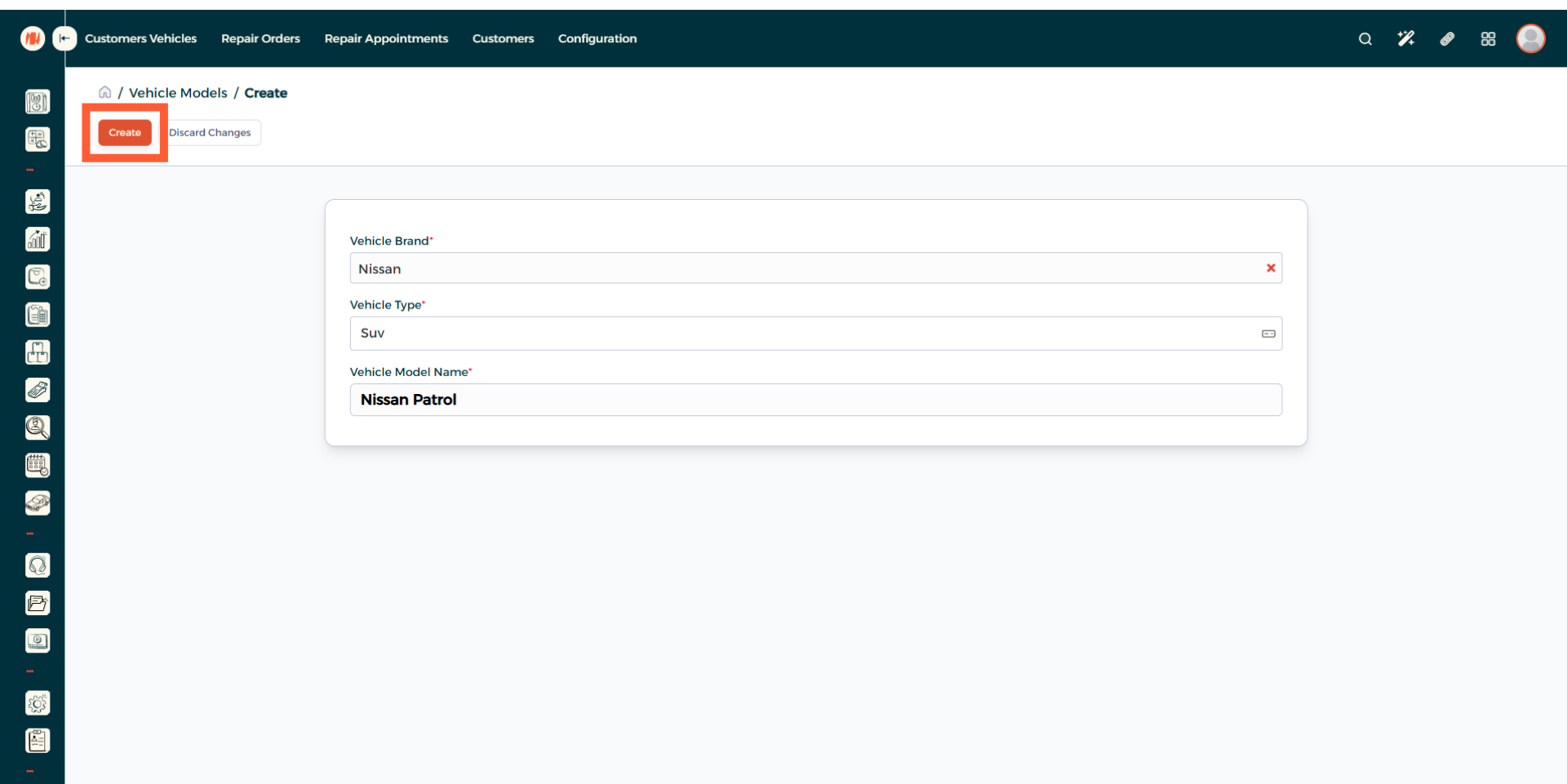
Step 13: View Vehicle Model Creation
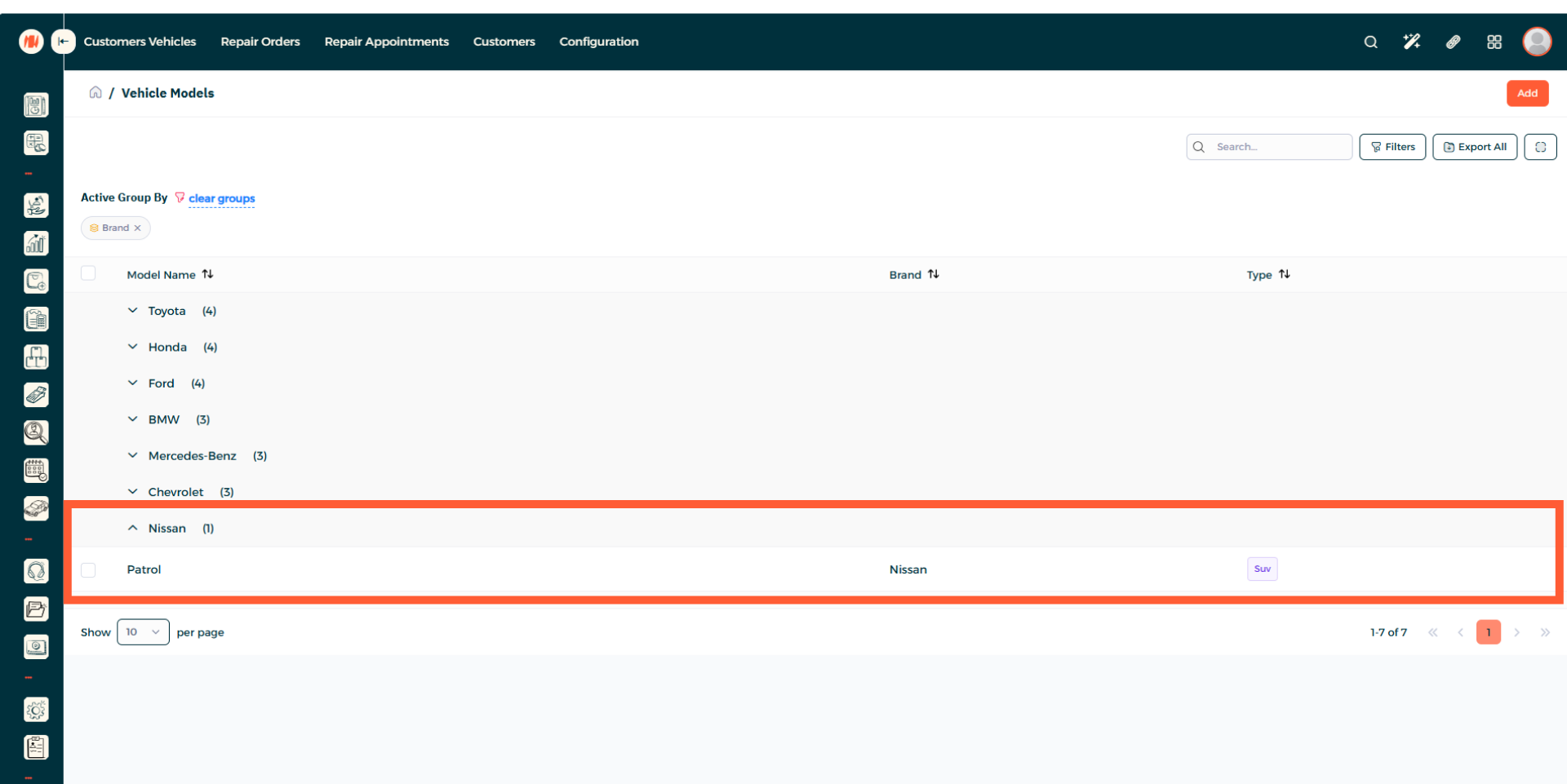
That's it! By following these simple steps, you now know how to add Vehicle Brands and Models in Invent ERP.
Notes & Tips
-
Be specific when naming models as many brands have similar names and multiple trims or options, so be clear to prevents selection errors.
- Double check for duplicate brand or model entries before adding new ones to avoid confusion and issues.
Frequently Asked Questions (FAQ)
Q: Can I edit a vehicle brand or model after creating?
A: yes, go the vehicle brand page or vehicle model page. Then select what you want to edit and save your changes.